How to set up Microsoft Authenticator
These instructions assume you already have a Microsoft 365 account and username set up. They are aimed at iBizify Microsoft 365 customers.
Got a "Temporary Access Pass"? Read this first to get started.
We recommend using Microsoft Edge on a Mac or Windows PC. If you use multiple Microsoft 365 accounts such as with several organisations, also consider creating a dedicated browser profile.
In your web browser:
- Visit https://aka.ms/mysecurityinfo
- Sign in to your given Microsoft 365 details. Got a "Temporary Access Pass"? Read this first to get started.
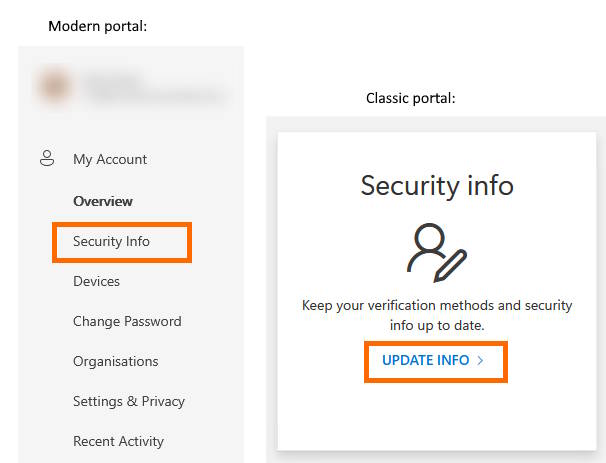
- Click Security Info:
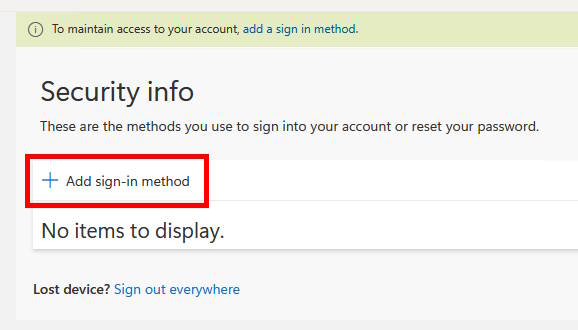
- Click Add sign-in method:
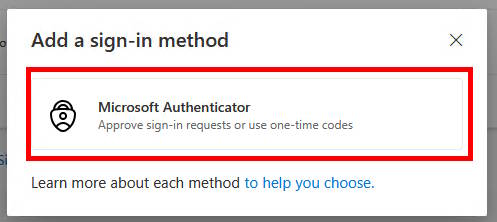
- Choose Microsoft Authenticator:
- Install the Microsoft Authenticator app on your iPhone or Android device:
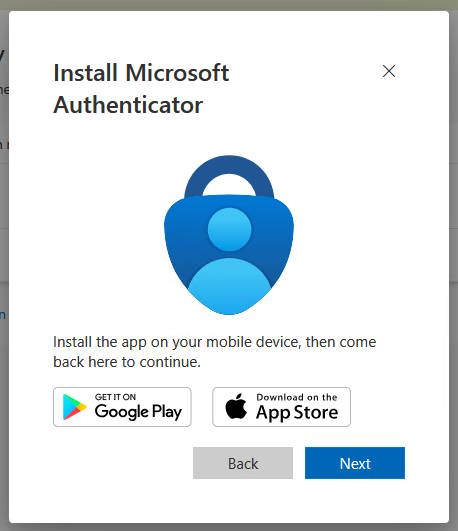
Android: https://play.google.com/store/apps/details?id=com.azure.authenticator&hl=en-GB
iPhone: https://apps.apple.com/gb/app/microsoft-authenticator/id983156458
- On your phone, start the Microsoft Authenticator app
- If prompted to sign in to Authenticator, cancel this.
- Tap the + button to Add an account.
- Choose "Work or school" when asked what type of account.
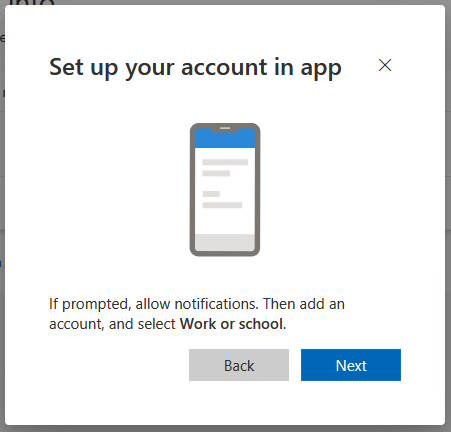
- On your PC or Mac, click Next.
- You will see a QR code.
- Microsoft Authenticator will present a camera scanning window.
- You might need to approve permission for Microsoft Authenticator to use your camera.
- Aim the Microsoft Authenticator scanning window at the QR code on your PC or Mac.
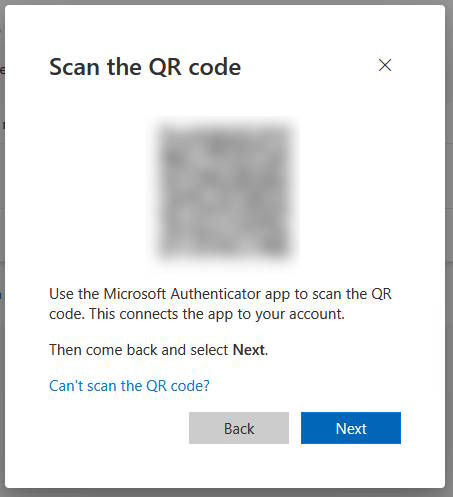
- Your account is now added to Microsoft Authenticator.
- On your PC or Mac, Click Next.
- You will be presented with a short number.
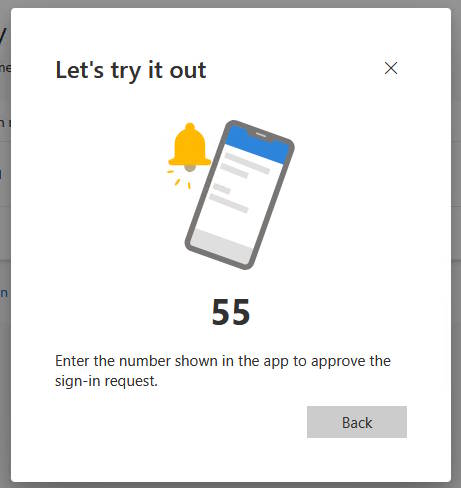
- You will see an Authentication prompt on your phone.
- Check the details of the request.
- Enter the presented number into the box and tap Yes/Approve.
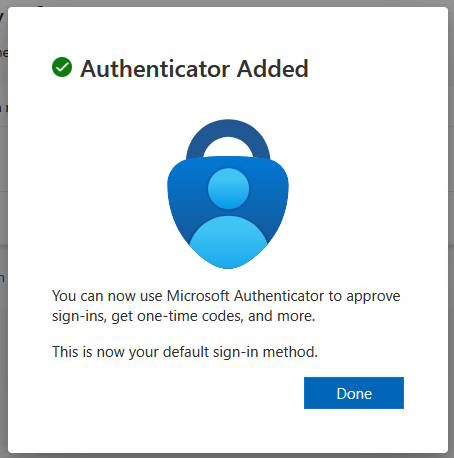
- Setup of Microsoft Authenticator is complete.
In future when you sign into a new device, or periodically thereafter you may be asked to approve a sign in request on your phone after having entered your password.
Always check the details of any approval request you receive! If you ever receive a sign in approval on your phone when you are NOT signing in, or are otherwise suspicious, report the incident to your administrator or support team.